01 — Workflow Group

Guided VA Form 21-526EZ Workflow

The core of the app is a structured claim-preparation flow organized around the major sections of the official VA disability compensation form. Instead of managing a blank folder, you move through labelled sections: Claim, Identification, Service, Exposures, Finalize, Conditions, Evidence, and Review.

Each section prompts you for what that part of the form actually asks. You can stop and pick up where you left off between sessions — the claim file saves automatically and stays on your device.

  • Sections map to the structure of the real VA form
  • Condition-by-condition entry for what you're claiming
  • Exposures section for burn pits, Agent Orange, and other hazards
  • Local claim file format (.vetclaim) keeps work organized on your machine
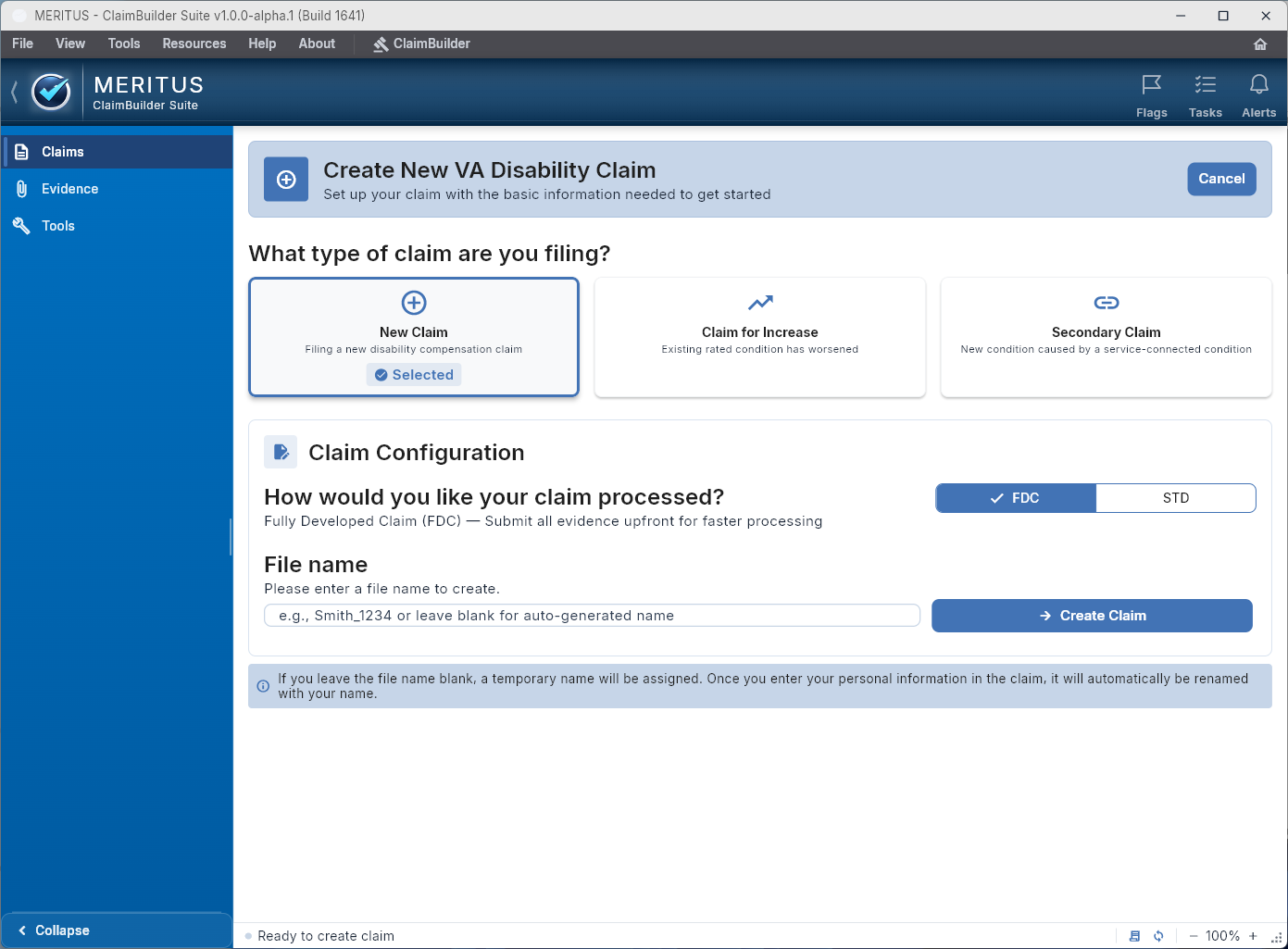
Start New Claim screen showing claim type cards and processing track options

Start New Claim — choose New Claim, Claim for Increase, or Secondary Claim, then set your processing track and create the claim file.
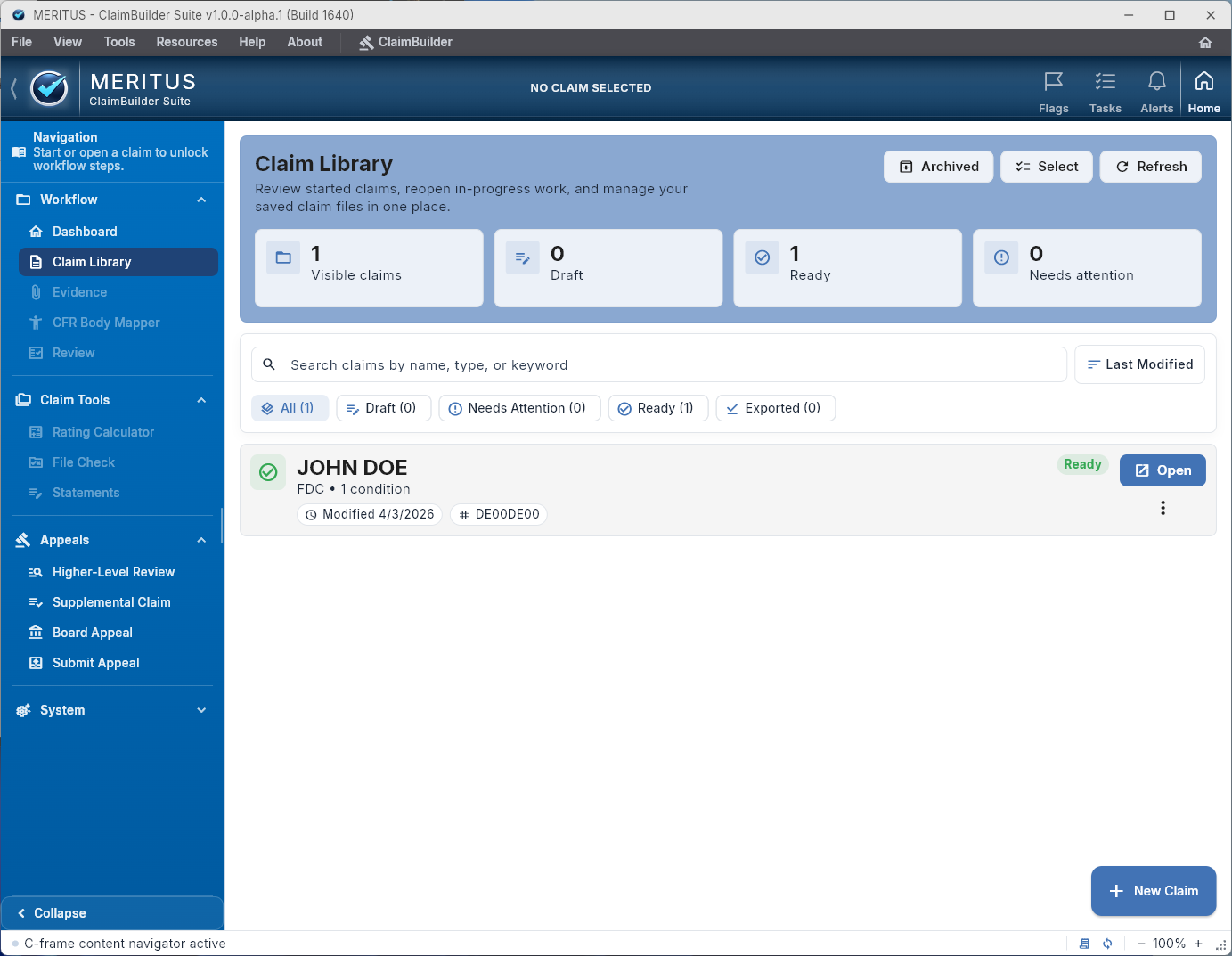
Claim Library screen with stat cards and claim rows

Claim Library — browse, search, and manage all saved claim files. Stat cards show counts by status at a glance.

02 — Workflow Group

Claim Library

The Claim Library gives you a single place to manage multiple saved claim files. If you're working on more than one claim, or have paused and come back to an older one, the library shows you all of them in one searchable list with status indicators.

  • View by status: Visible, Draft, Ready, Needs Attention
  • Reopen any saved claim file directly from the list
  • Archive, rename, and manage existing claims
  • Supports ongoing prep work across multiple claim cycles
03 — Workflow Group

Evidence Workspace

The evidence workspace organizes supporting records by condition and by the role they play — diagnosis evidence, in-service event documentation, nexus support, or severity records. It also surfaces a checklist of what's present and what's still missing for each condition.

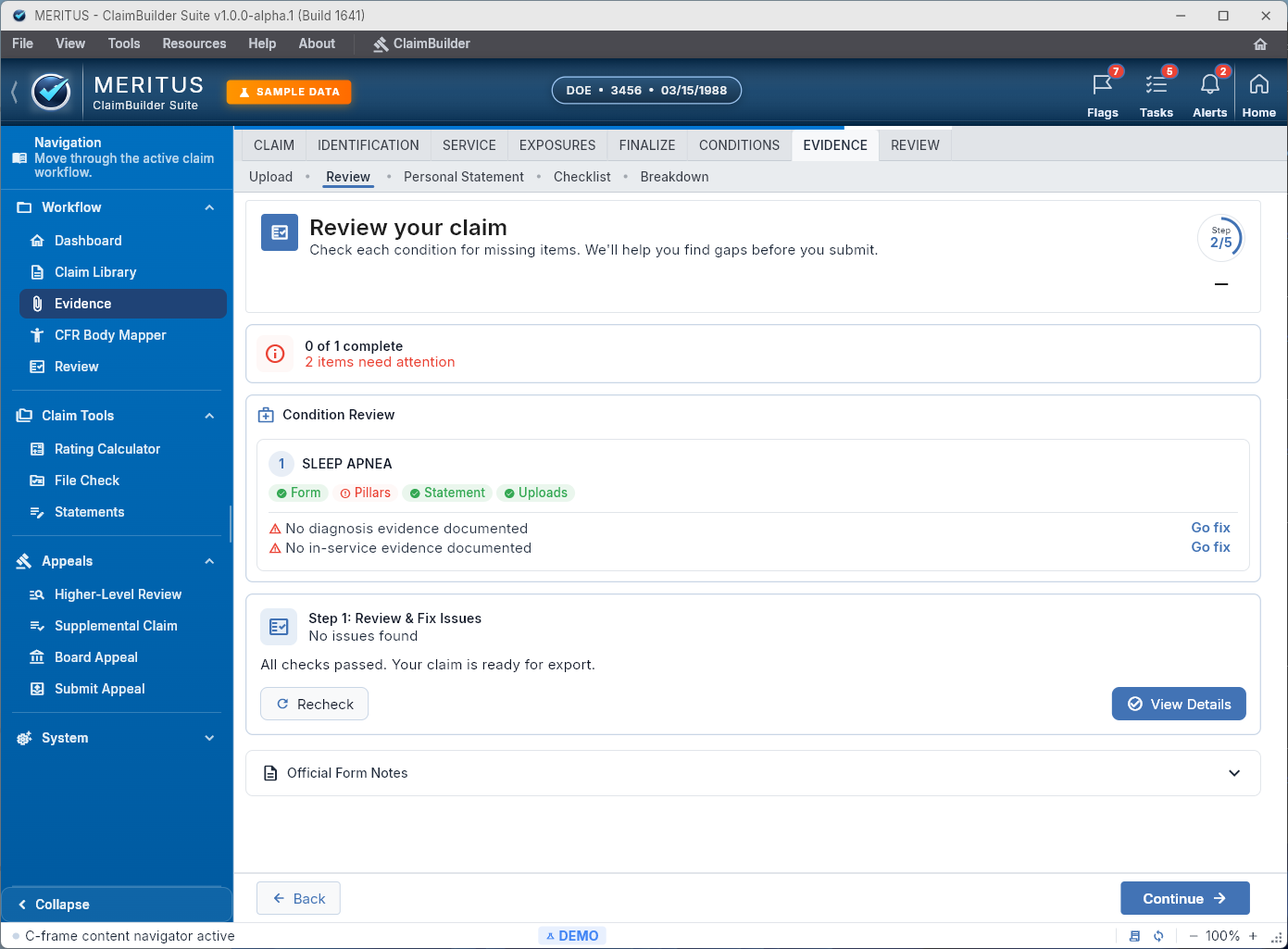
When you review, flags appear condition by condition. Each flag shows the severity (blocker, warning, or informational) and a "Go fix" action that takes you directly to the item that needs attention.

  • Condition-based evidence organization
  • Evidence role categories: diagnosis, in-service, nexus, severity
  • Missing-evidence flags with direct "Go fix" navigation
  • Review status per condition before export
Evidence Review screen with condition-level review and missing items flags

Evidence workspace — condition-level review with missing items flagged and direct "Go fix" actions to address them.

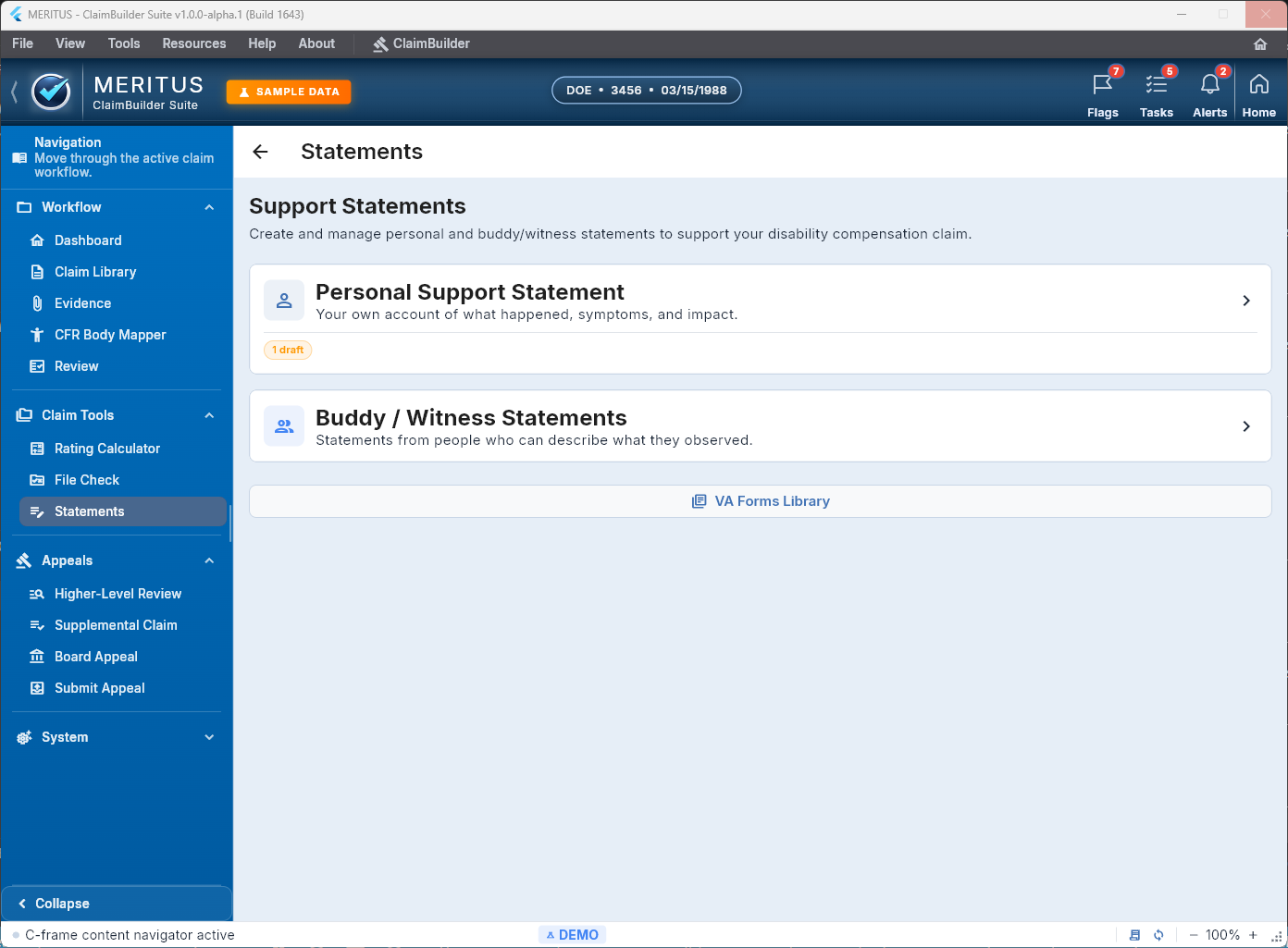
Support Statements screen with Personal and Buddy statement cards

Support Statements — separate cards for the veteran's personal statement and buddy or witness statements.

04 — Claim Tools Group

Support Statements

The Support Statements section provides dedicated screens for drafting a personal support statement (the claimant's own account of what happened and how it affects them today) and for managing buddy or witness statements from others who can corroborate the claim.

The personal statement screen is structured around the information that actually matters: what happened, when it started, current symptoms, functional impact, and frequency and severity. There's also a direct link to fill VA Form 21-4138.

  • Structured personal support statement with section-by-section prompts
  • Buddy and witness statement management in a dedicated area
  • Direct link to VA Form 21-4138 within the statement screen
  • Plain-language field labels — not legal boilerplate
05 — Workflow Group

CFR Body Mapper

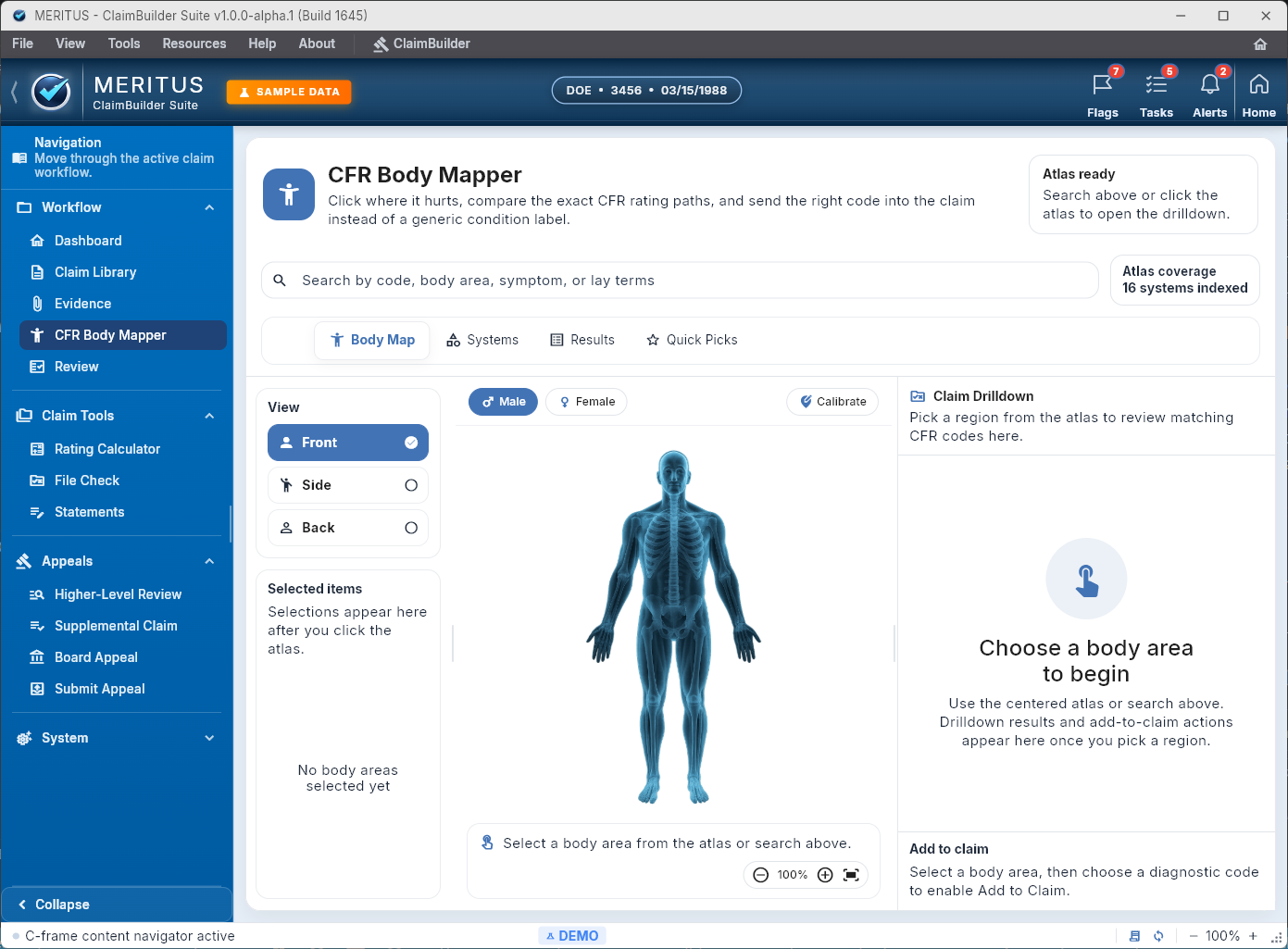
The CFR Body Mapper combines a body-region visualization with a diagnostic code lookup tool. Select a body region, and the mapper shows you relevant CFR codes and conditions commonly associated with that area — which you can then connect directly to the claim workspace.

The mapper is a research and reference tool, not a medical tool. It helps you see how the disability rating system maps body areas to diagnostic codes so you can make more informed decisions about what to include and how to document it.

  • Front, side, and back anatomical views with 16 systems indexed
  • CFR code lookup by body region
  • Claim Drilldown panel for connecting conditions to the active claim
  • Reference tool — does not generate medical conclusions
CFR Body Mapper with anatomical body views and claim drilldown panel

CFR Body Mapper — body-region views with 16 systems indexed and a Claim Drilldown panel for connecting to the active claim.

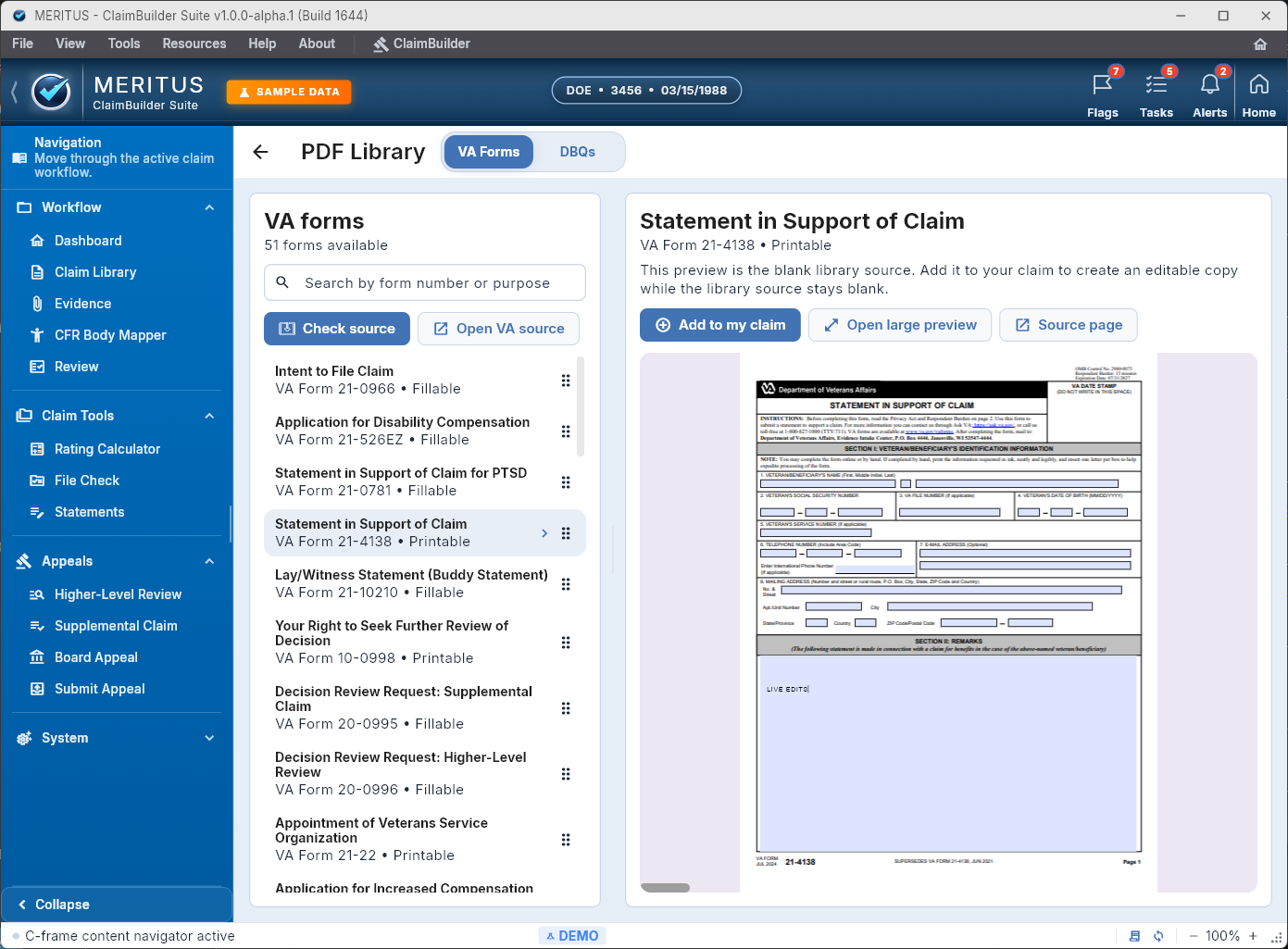
PDF Library with VA Forms tab showing 51 forms and a side-by-side preview pane

PDF Library — VA Forms tab with 51 forms, in-app preview pane, and "Add to my claim" to include a form in the active claim.

06 — Workflow Group

PDF Library

The PDF Library gives you in-app access to a searchable collection of VA forms and public DBQ references. Forms can be previewed in a side-by-side pane and added directly to the active claim so they stay associated with the work you're doing.

  • VA Forms tab — 51 forms with search and preview
  • DBQ reference tab for public Disability Benefits Questionnaires
  • "Add to my claim" places a form inside the active claim workspace
  • No external browser required — preview stays inside the app
07 — Workflow Group

Final Review and File Check

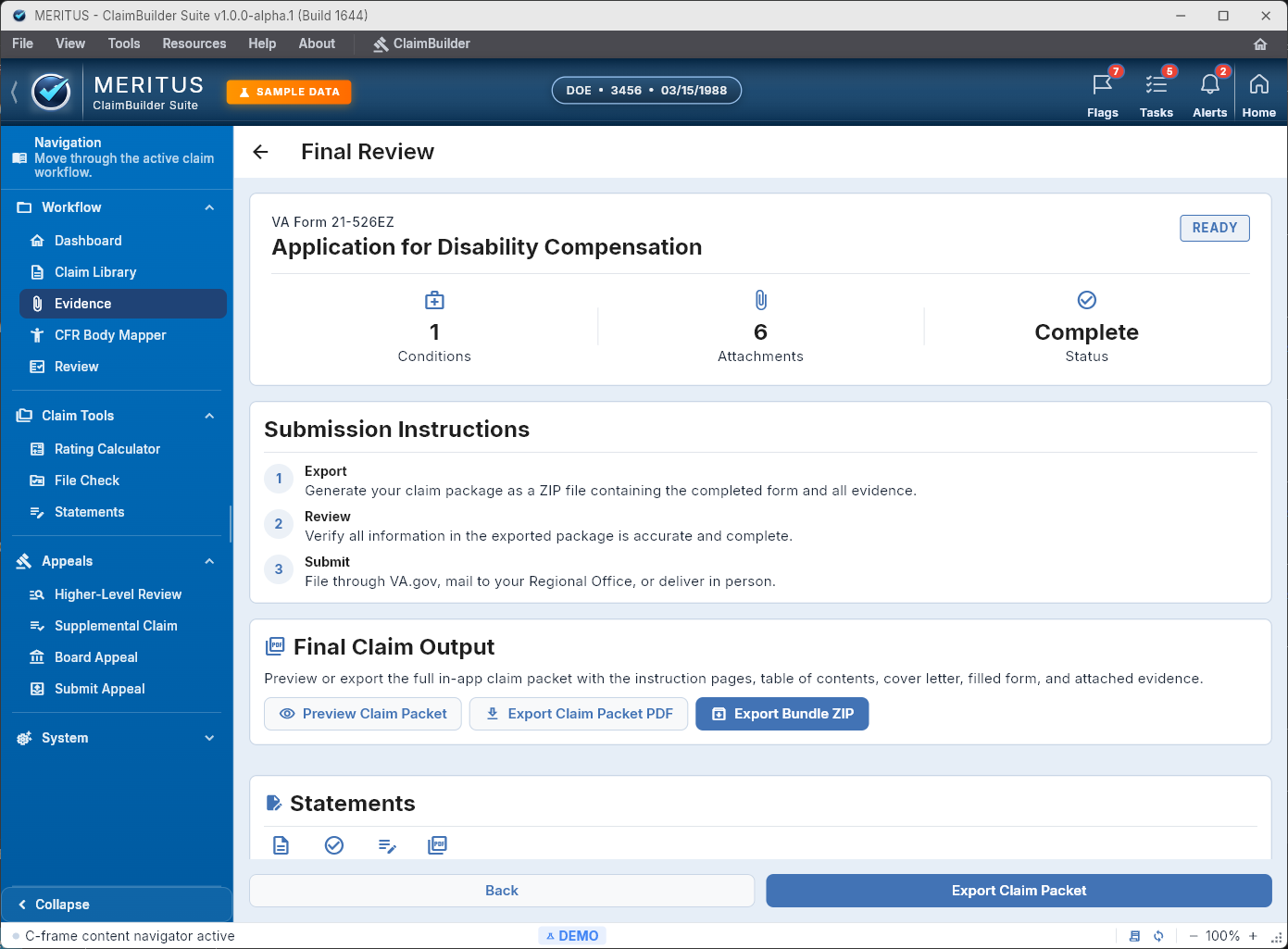
Final Review shows you the overall completeness status of the claim — how many conditions are included, how many attachments are present, and whether the claim is ready to export. It surfaces blockers, warnings, and informational flags before you generate any output.

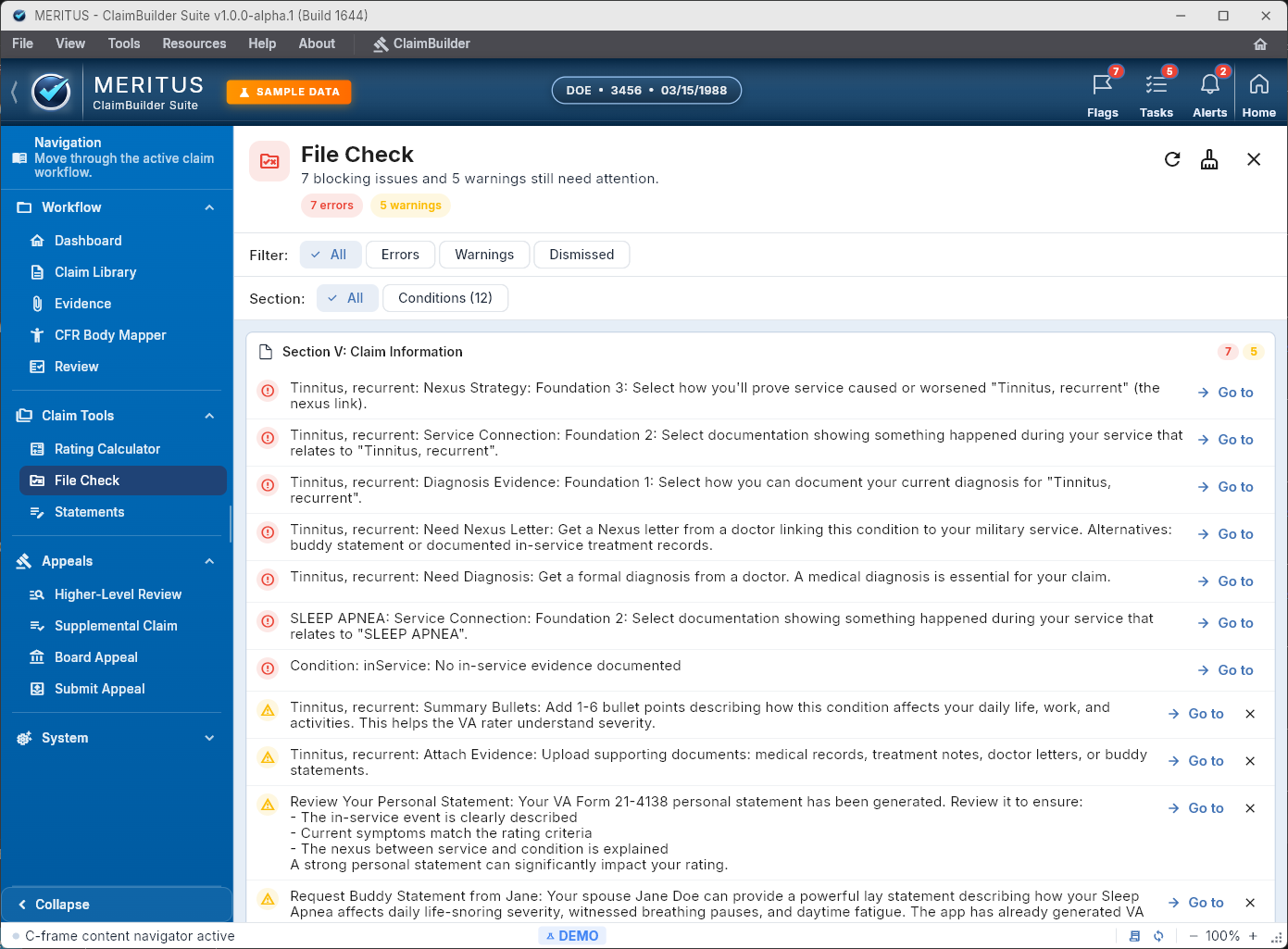
File Check is a separate focused surface for working through those issues. Each flag has a severity level (blocking, warning, or informational) and a direct "Go to" link that takes you to the exact item needing attention, so you can fix things without losing your place.

  • Completeness status — conditions, attachments, review state
  • Export Claim Packet PDF and Export Bundle ZIP once ready
  • File Check shows blocking issues and warnings with direct navigation
  • VA Form 21-526EZ marked READY when no blockers remain
Final Review screen showing VA Form 21-526EZ ready status with export buttons

Final Review — VA Form 21-526EZ READY with 1 condition, 6 attachments, and export options.

File Check screen showing 7 blocking issues and 5 warnings with Go to links

File Check — 7 blocking issues and 5 warnings, each with a "Go to" link to the item needing attention.

Also included in the desktop app

Supporting tools available while working on a claim.

Rating Calculator

A built-in calculator available while you're working. Useful for estimating combined ratings, but should not be treated as a definitive outcome predictor.

Appeals Lane Pages

The app includes structured reference pages for Higher-Level Review, Supplemental Claim, Board Appeal, and Submit Appeal — visible in the navigation today as lane guides.

In-App Help and Legal Center

A full user guide, workflow examples, release notes, and legal boundary documents are accessible inside the app under the Help and Legal Center sections.

Send Feedback

Users can submit feedback or report problems directly from inside the app without leaving the workflow.

Local Claim Files

Claim work is stored in .vetclaim files on your device. Files save automatically and can be backed up, moved, or reopened from the Claim Library.

Conditions with Symptoms and Impact

Each condition has dedicated screens for symptoms (with good and bad day detail) and functional impact — both connected directly to the evidence and statement workflow.

Note on app branding: The current desktop app displays "MERITUS — ClaimBuilder Suite" in its title bar and navigation. ClaimGap is the public website identity for this product. The in-app labels reflect an earlier naming state that has not yet been fully updated across all surfaces. The features described on this page match the current shipped application.

See it for yourself.

Download the Windows build and walk through your first claim workspace. The full workflow is available immediately after installation.